
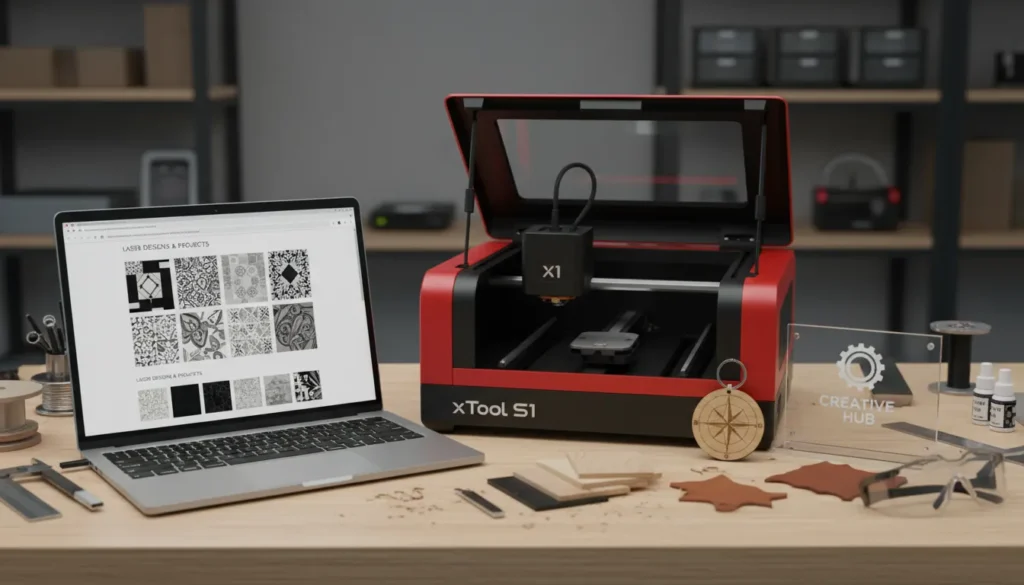
Designstore can mean different things depending on what you’re searching for: a marketplace for ready-to-use cut files, a curated retail shop for modern products, or a creative agency offering brand services. If you’re a maker or small business, though, “designstore” usually points to one urgent need: a reliable place (or system) to find, organize, and monetize designs that turn into real products. I’ve built product lines where the design pipeline—not the machine—was the bottleneck, and a well-run designstore fixed that faster than any hardware upgrade.
This guide breaks down what a designstore is, how to choose one, and how to run a design workflow that actually ships—especially if you’re producing with xTool laser cutters/engravers, UV engraving, laser welding workflows, or DTF apparel printing. Along the way, you’ll get a practical checklist, a comparison table, and a few “don’t-learn-this-the-hard-way” lessons.

What “Designstore” Usually Means (and Why It Matters)
A designstore is any platform or storefront where designs are discovered, purchased (or downloaded), licensed, and used for real projects. In practice, it can be:
- A digital design marketplace (SVGs, DXFs, PNGs, patterns, templates)
- A curated product design store (physical goods, “design-led” retail)
- A creative services studio (brand identity, print/digital design)
For makers and fabrication businesses, the first meaning is the most actionable: designs that can be resized, edited, and produced with consistent results. The right designstore reduces wasted material, speeds up personalization, and helps you scale from “one-off gifts” to repeatable SKUs.
How a Designstore Workflow Works (From Download to Finished Product)
Most top design marketplaces follow a simple flow: choose → size/edit → produce. That sounds easy, but the “edit” step is where projects fail if your files and settings aren’t ready.
Here’s the workflow I use to keep output predictable:
-
Choose the design with production in mind
- Look for clean vectors, consistent stroke widths, and minimal node clutter.
- Confirm file formats match your toolchain (SVG/DXF for cutting, PNG for print, etc.).
-
Verify license and intended use
- Personal use vs commercial use is a real boundary.
- If you sell finished goods, you need a license that allows it.
-
Preflight the file
- Check size, line weights, overlaps, and text outlines.
- Convert fonts to outlines to avoid missing-font surprises.
-
Prototype on cheap material
- I always run a “fast fail” test on scrap acrylic/plywood before premium stock.
-
Production + documentation
- Save settings by material and thickness.
- Store a photo of the finished output next to the design file for quick repeat runs.
Choosing the Right Designstore: What to Look For
A designstore isn’t “good” because it has a million files. It’s good because it helps you find the right file quickly and use it successfully.
Must-have features for makers
- Clear licensing (commercial terms stated in plain language)
- File format variety (SVG, DXF, AI, PDF, PNG at minimum)
- Filtering by craft + machine use (laser, vinyl, sublimation, DTF, UV)
- Bundles and collections for seasonal launches (weddings, holidays, school, pets)
- Artist ecosystem (better variety and fresher design trends)
Nice-to-have features (that save real time)
- One-click download history and cloud library
- Mockups that show what the design looks like on wood/acrylic/apparel
- Ratings + photos from other buyers (production proof beats marketing images)
To understand how different “designstore” models position themselves, compare how marketplaces focus on downloadable designs, while design-led retail stores emphasize curation and product storytelling. Each can inspire how you structure your own store categories and collections.
Designstore + xTool: Turning Digital Files Into Sellable Products
xTool’s ecosystem is built for “idea → file → product,” which is exactly what a modern designstore workflow needs. Whether you’re engraving tumblers, cutting signage, or printing apparel, the design file is the starting point—and the limiter.
Where xTool fits best in a designstore production pipeline
- Laser cutting/engraving: signage, ornaments, layered art, packaging inserts
- UV engraving (ultra-precise detail): small text, photo-like engraving, premium personalization
- DTF apparel printing: fast turnaround for shirts, totes, and team merch
- Accessories + materials: consistency across batches (critical for scaling)
If you want a steady stream of production-ready designs, the xTool collaboration with a design marketplace is worth exploring: collaboration xtool x creative fabrica. When I tested marketplace bundles for seasonal drops, the biggest win wasn’t “more designs”—it was faster ideation and fewer dead-end concepts.
For makers building into retail categories like home décor, this guide is also relevant: how laser customization solves house furnishing retail challenges. It frames personalization as a retail advantage, not just a craft feature.
And if you’re setting up a classroom or makerspace designstore workflow, the catalog is a useful reference point for standardizing tools and projects: xtool education product catalog.
Common Designstore File Problems (and How to Fix Them Fast)
Most “bad cuts” aren’t machine problems—they’re file problems. Here are the issues I see repeatedly when people buy from a designstore and go straight to production.
| Problem | What You’ll See | Likely Cause | Fast Fix | Prevention Tip |
|---|---|---|---|---|
| Double cut lines | Machine cuts the same edge twice; scorching or wider kerf | Duplicate paths stacked; stroke expanded twice | In Illustrator/Inkscape, delete duplicates; use “Remove Duplicates”/simplify; re-export SVG/DXF | Use outline view before export; keep a single cut layer |
| Open paths | Shapes don’t cut cleanly; laser lifts at gaps; contour won’t close | Endpoints not joined; stray segments | Join/close paths; weld/union shapes; run “Find open paths” if available | Convert strokes to paths properly; snap endpoints and close shapes |
| Too many nodes | Slow processing; jittery cuts; tiny bumps on curves | Over-traced bitmap; excessive “simplify” off | Simplify paths; retrace with lower detail; smooth curves | Use clean vector sources; avoid auto-trace at high detail settings |
| Raster-only art | Won’t recognize cut lines; only prints/engraves | File contains PNG/JPG only; no vector paths | Recreate as vector; add vector cut/score paths; export SVG/PDF properly | Verify layers: vector cuts vs raster engrave before uploading |
| Missing fonts | Text changes or reflows; substitutions on import | Fonts not embedded/available | Convert text to outlines/paths; embed fonts in PDF if supported | Outline text before sharing; use common fonts or include font files |
| Wrong DPI for PNG | Engrave size is wrong; looks blurry or scaled unexpectedly | PNG exported at incorrect DPI; software interprets DPI metadata | Re-export PNG at required DPI (e.g., 300/600); set correct size in export dialog | Use a standard DPI workflow; include dimensions in filename/notes |
| Tiny text for engraving | Text fills in, becomes unreadable, or disappears | Text too small for spot size/material; excessive power/speed | Increase font size/thickness; use bold/simple fonts; adjust settings; test on scrap | Keep engraving text above minimum size for material; avoid thin serifs |
| Ungrouped layers | Parts shift; cut order wrong; elements missing or miscolored | Objects not grouped; layer colors/operations not set | Group related parts; assign correct layers/colors for cut/score/engrave | Name layers consistently; run a preflight checklist before export |
| Incorrect kerf compensation | Parts too tight/loose; tabs don’t fit; holes undersized | Kerf not accounted for; wrong material kerf value | Apply kerf offset (in/out) or adjust design dimensions; run kerf test cut | Keep a kerf chart per material/thickness; bake kerf into templates |
Quick preflight checklist (60 seconds)
- Confirm units (mm vs inches)
- Remove duplicate lines (prevents burning and overcut)
- Ensure closed shapes for cutting paths
- Outline text and expand strokes
- Separate engrave vs cut layers by color
What Sells Best in a Designstore (Realistic Product Categories)
If your goal is revenue, don’t start with “what’s cool.” Start with what repeats and what buyers personalize.
High-performing categories for makers:
- Name-based personalization (keychains, bag tags, pet tags)
- Event templates (weddings, baby showers, graduations)
- Home labels + organization (pantry labels, storage tags, laundry signs)
- Seasonal décor (ornaments, door hangers, tabletop signs)
- Small business essentials (logo plates, QR signs, packaging inserts)
My pricing reality check
I’ve found that customers happily pay for:
- Speed (ready-to-run designs)
- Confidence (designs proven by photos/reviews)
- Personalization (their name/date/logo)
They don’t pay extra for complexity if it doesn’t show in the final product.

Build Your Own Designstore (If You Sell Designs or Finished Goods)
If you want “designstore” to mean your store, you need two systems: a design library and a product library.
A simple structure that scales
-
Design Library (digital)
- Folder by category → subfolder by occasion → subfolder by format
- Include a “README” with license notes, fonts used, and production settings
-
Product Library (physical)
- SKU naming that matches the design file name
- Photos of finished items + settings notes (material, power/speed, passes)
What to standardize early
- Material thicknesses you stock
- Font families you license
- Packaging sizes
- Shipping weights and box types
Standardization is the quiet engine behind profitable customization.
Designstore SEO: How People Actually Search (and How to Match It)
If you’re creating collections or category pages, mirror real search behavior. People rarely search “designstore” alone—they add intent.
Common intent modifiers:
- “designstore SVG”
- “designstore laser cut files”
- “designstore engraving designs”
- “designstore commercial license”
- “designstore bundles”
- “designstore DTF designs”
Use these naturally in:
- Category titles (H2/H3)
- Collection descriptions (2–3 sentences)
- Alt text for product images
- FAQ sections (great for long-tail queries)
For broader context on design-led retail and curation, it’s useful to study how established stores position “what makes us different,” like the MoMA Design Store approach to editorial curation. For downloadable cut-file marketplaces and artist ecosystems, reviewing models like the Silhouette Design Store can help you think about bundles, categories, and creator programs. If you’re exploring “designstore” as a creative agency concept, a reference example is Designstore Ltd, which frames design as an end-to-end service.

Conclusion: Make “Designstore” Your Competitive Advantage
Designstore isn’t just a place to buy pretty files—it’s a system for turning ideas into products with less waste, fewer failed runs, and faster launches. When I treated my designstore workflow like inventory (licensed, tested, documented, repeatable), production became predictable—and sales followed. If you’re using xTool machines, the opportunity gets even bigger because you can move from design to finished goods quickly across materials and product types.
FAQ: Designstore Questions People Ask
1. What is a designstore used for?
A designstore is used to find, buy, download, and license designs (like SVG/DXF/PNG) or design-led products so you can create projects faster and more consistently.
2. Is a designstore good for commercial use?
It can be, but only if the listing license explicitly allows commercial use (selling finished goods and/or selling the design). Always read license terms before producing items for sale.
3. What file types should I look for in a designstore for laser projects?
For laser cutting and engraving, prioritize SVG and DXF (vectors). For photo-style engraving or print workflows, you may also need high-resolution PNGs.
4. Why do my cuts look burned or double-cut from designstore files?
The most common cause is duplicate lines or overlapping paths in the vector file. Run a quick preflight to remove duplicates and ensure clean single paths.
5. Can I use designstore files with xTool machines?
Yes—most designstore files can be used in common design software and then sent to your xTool workflow, as long as formats and licensing match your intended use.
6. How do I organize a personal designstore library?
Use folders by category/occasion and store production notes (material, settings, photos). Consistent naming and saved presets reduce rework.
7. What designs sell best from a designstore-based business?
Personalized name/date products, event templates, seasonal décor, and small-business signage tend to repeat well and are easy to market with photos and bundles.